UWIT is now requiring guest accounts in our Microsoft environments to provide MFA on login, just as UW NetID accounts are. More details of this requirement can be found at Entra ID Authentication
The UW regularly updates its multi-factor authentication (MFA) features to provide secure sign-ins. Major updates are highlighted on this page. This page design to keep you informed about the trusted UW MFA experience and explain any changes. If you have questions about the security your MFA experience or need help with UW MFA, please contact help@uw.edu.
UWIT will never ask you to tell us your password, share Duo generated numbers, enter numbers into Duo Mobile, or log into a site that doesn't look like the normal "log in with your UW NetID" experience you see regularly. If you are asked to do any of these, stop, call or reach out to UWIT at 206.221.5000 or help@uw.edu. If there's a legi timate action needed, we can confirm it with you then.
New Changes
UWIT is evaluating the use of Microsoft based MFA in our environment through a controlled enabling of Microsoft MFA. This is expected to first appear on Microsoft based sign ins, but will be applied to all UW NetID Logins over time.
While no change dates are announced at this time, we will be communicating them as they are set. More details will be added to this topic as we are ready to share more.
Previous changes
Duo Methods and Opt-In Update March. 3, 2026
On March 3rd, 2026, UWIT will be changing how the Duo Push and Duo Passcode methods in Duo Mobile look, and will be requiring MFA on all logins ("opting in") all active retirees and recently separated users. Details about these changes are laid out below. If you believe any of the changes outlined will present a significant challenge to your ability to log in, please reach out to help@uw.edu.
A new Duo Push experience is being implemented to help protect your data by making it harder for attackers to access your account. In the new Duo push experience, you are asked to enter a three digit number as it appears on the page you are logging in to. To do so, open your Duo Mobile app and type in the numbers you were shown.
The new push experience addresses "fatigue attacks" where the attacker tries to log in over and over until it is approved which the old push experience was subject to. Because you need to be able to see the three digits on the phone and on the device logging in, an attacker has to find a way to convince you to enter the three digits and press "Verify" while they are trying to log in.
Some devices will show a "full keyboard" when opening a push notification from a notification screen. To see the numeric keyboard as captured in the screenshot, you must open the Duo Mobile application directly.
UWIT will never ask you to enter a three digit code into Duo Mobile, especially as a way to verify you.
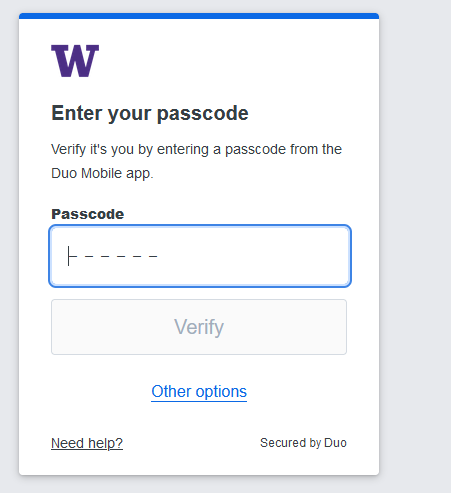
A new Duo Passcode experience is being implemented to help protect your data by making it harder for attackers to access your account. In the new Duo Passcode experience, your Duo Mobile generated passcodes will now expire every 30 seconds.
The new passcode experience addresses phishing pages where the attacker displays a convincing imitation of the UW login page and has you enter your Duo passcode which they save for later. Because this code now expires, the attackers cannot hold onto what they captured and use it at a later date to log into your account without your knowledge. Instead, they would need to call you and have you read them the value shown in your application in order to get access.
UWIT will never ask you to read out the passcode showing in your Duo Mobile.
Current retirees who have an active retiree position in Workday are granted use of Duo automatically. To ensure retirees accounts are protected as well as protecting their data and the UW environment, the use of Duo will become required. Many retirees are already "opted in" and will experience no change. But for those who have not used Duo before, they will need to go to https://identity.uw.edu/2fa and set up a method to complete MFA. You can read more about what "opting in" means at Opt in to use 2FA on the web or find instructions about setting up available login methods:
Recently separated users who maintain access to Workday are granted use of Duo automatically. To ensure these accounts are protected as well as protecting their data and the UW environment, the use of Duo will become required. Most recently separated users are already "opted in" and will experience no change. But for those who have not used Duo before, they will need to go to https://identity.uw.edu/2fa and set up a method to complete MFA. You can read more about what "opting in" means at Opt in to use 2FA on the web or find instructions about setting up available login methods:
Duo Update Required Before Feb. 2, 2026
On February 2nd, 2026, Duo enforced use of a new certificate bundle. Applications including Duo Mobile that were not running supported versions found that Duo authentication may break or degrade in usability.
You must have been running version Duo Mobile 4.85.0 or greater on all registered devices by Feb. 2, 2026. You can check what version of Duo Mobile you are running by:
- Opening the Duo Mobile app.
- Tapping the "hamburger" menu icon in the top-left corner.
- Finding the version number displayed at the bottom of the menu pane starting with "Version"
If the number listed is a smaller number than 4.85 (for instance 3.7.0 or 4.76.1) then you must update your Duo Mobile application from the application store on your device. If the number is equal to or greater than 4.85 (for instance 4.85.1 or 4.104 .0) then no action is required for this device. The versioning used means that most recent "4.104.0" version may look like a smaller number than the minimum required version "4.85.0" as the format "Major number.Minor number.Patch number" compares the values listed in the "Major number" section first and then the "Minor number" section.
If you use multiple devices, please check each device.
If your devices cannot update to Duo Mobile 4.85.0, you should register a platform authenticator, a new phone/tablet, or request a hardware token from UWIT.
Duo has updated all impacted applications and the minimum supported version of that application in their support article. As Duo refers to the application by their technical name and not by the name you may know it by here at the UW, you may not immediately connect which application you run to the list Duo provides.
UWIT Identity and Access Management did reach out to each application team for which we knew there will be impacts, and providing the UW application name and the Duo application name referenced on their above support documentation.
If you have questions or would like the UWIT Identity and Access Management team to provide you with the Duo application name for your Duo integration, please reach out to help@uw.edu with the subject "Duo Certificate".
Duo Supported Version Update April, 2026
In Mid-April, 2026, Duo will no longer support Duo Mobile for Android 11 and iOS 16. The oldest supported versions will become Android 12 and iOS 17 at that time. If you are able, please update your Mobile OS version. If you are unable, please set up another available login methods:
The UW has updated the process for registering your MFA devices and added support for new authentication methods. No action is required from you, but here's what's new:
New Device Registration Experience
You can add, remove, or review your MFA devices at https://identity.uw.edu/2fa. While the location remains the same, the page has a new look. You will now need to click a button to open the updated page.
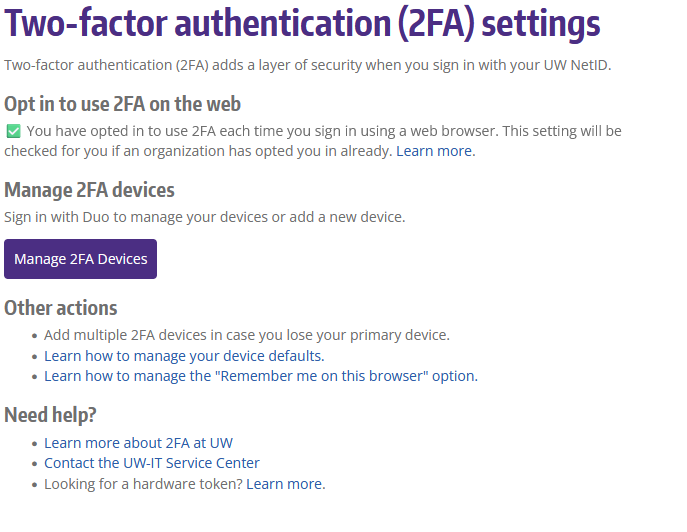
Pictured above, the new device registration experience 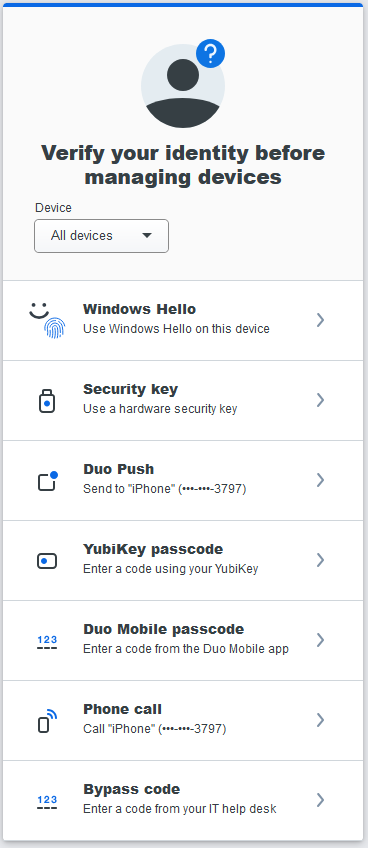 Pictured above, the new "verify your identity" step
  Pictured above, the new device registration page
 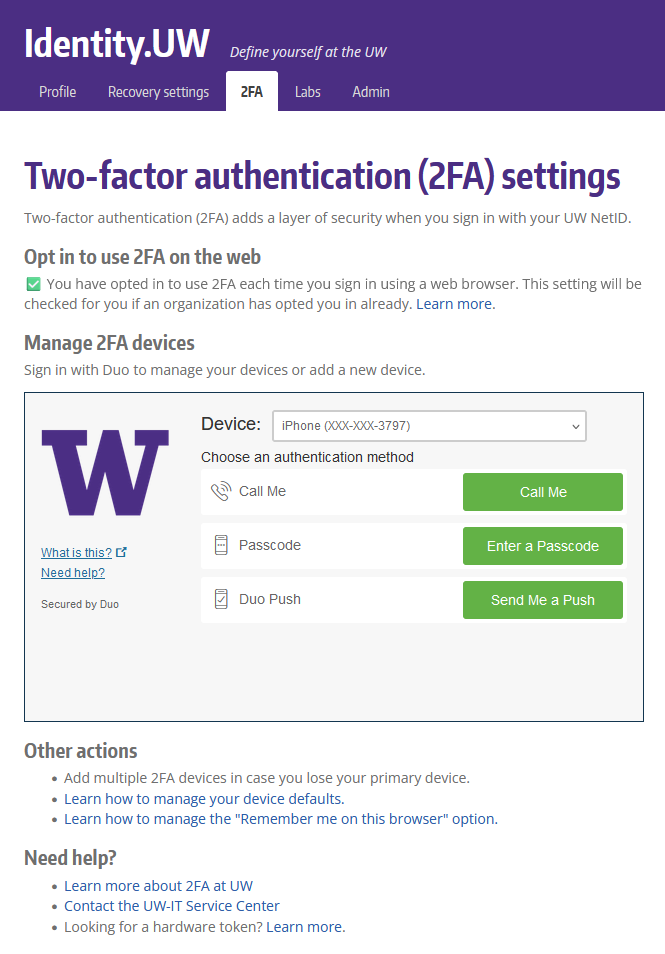 Pictured above, the old device registration experience
New Look for Registering Devices
New Look for Registering Devices
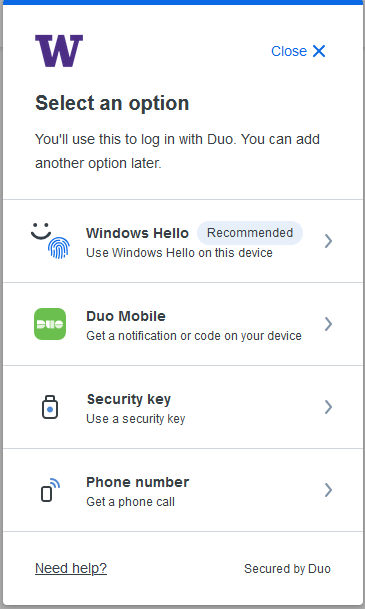 Selecting "Add a device" allows you to add "Duo Mobile"
 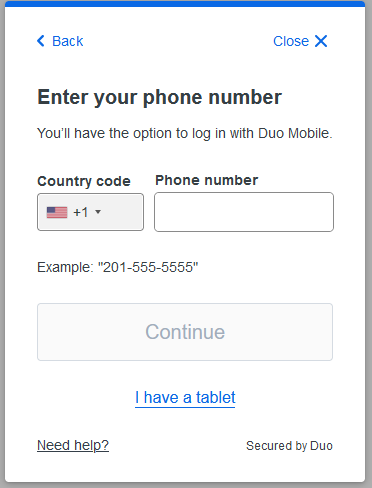 Enter your phone number
 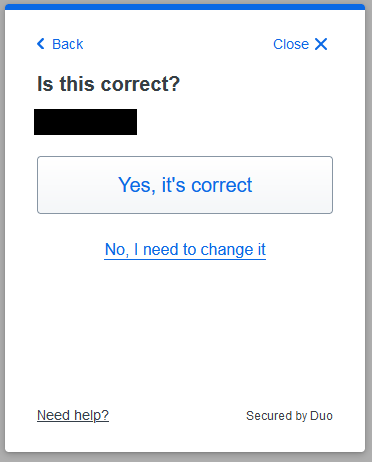 Confirm your phone number
 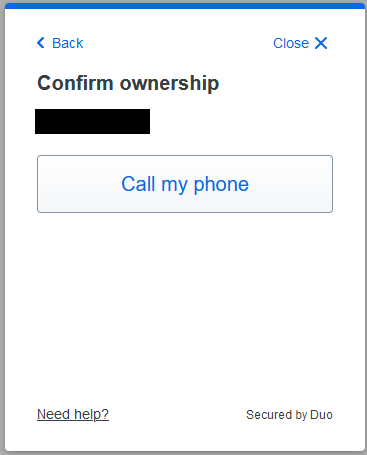 Demonstrate you control your phone number
 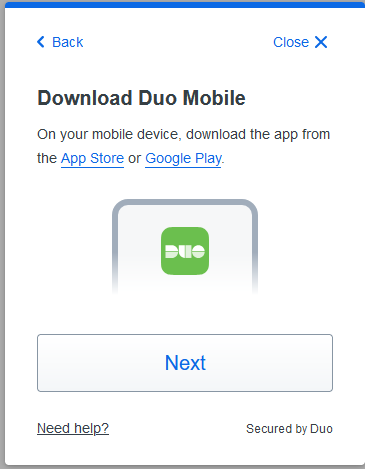 Make sure you have Duo Mobile downloaded
 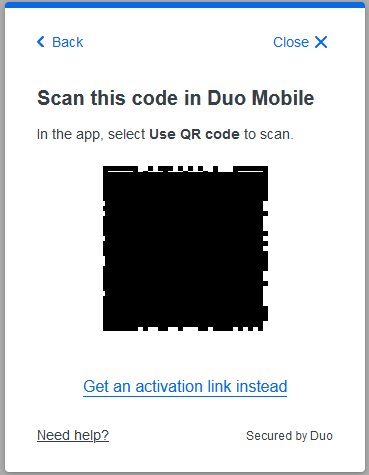 Scan the QR code with your phone via Duo Mobile
 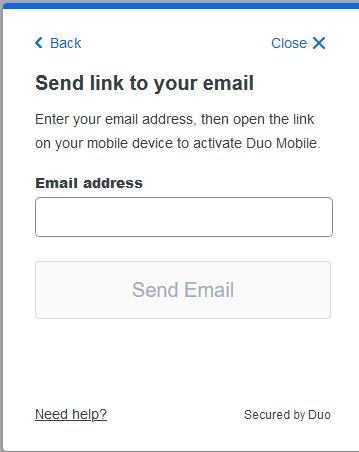 If you don't scan the QR code, you can instead email yourself the activation link
 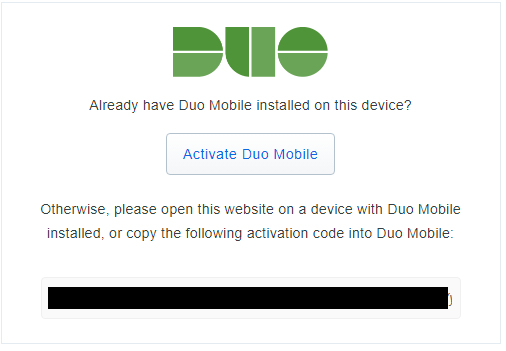 Clicking the email activation link allows you to activate directly Selecting "Add a device" allows you to add "Duo Mobile" Make sure you have Duo Mobile downloaded Scan the QR code with your phone via Duo Mobile If you don't scan the QR code, you can instead email yourself the activation link Clicking the email activation link allows you to activate directly Selecting "Add a device" allows you to add a security key
 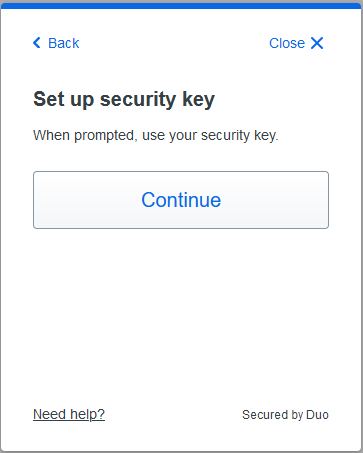 Click to continue adding the security key
 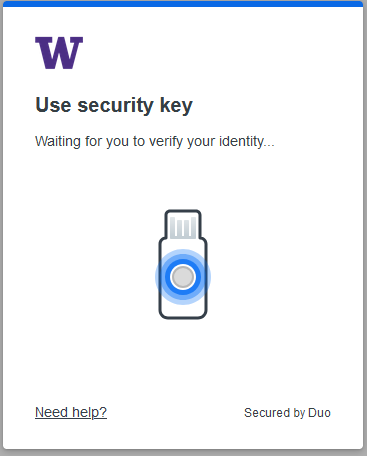 Follow the prompts to add a security key
Platform authenticators are a new way to do authentication that utilize the biometric passkeys on your device. Platform authenticators are only available as a method of authentication for the device they are set up on (so if you set up your phone, you can't select the phone's platform authenticator when on your computer). The prompts to set up your platform authenticator will be specific to your device, but the example screenshots are included below for examples. Selecting "Add a device" allows you to add a platform authenticator 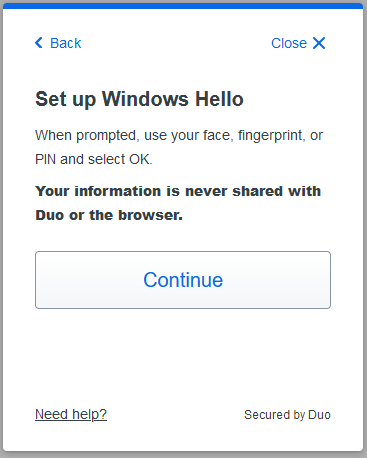 On windows devices, you can utilize the "Windows Hello" platform authenticator
 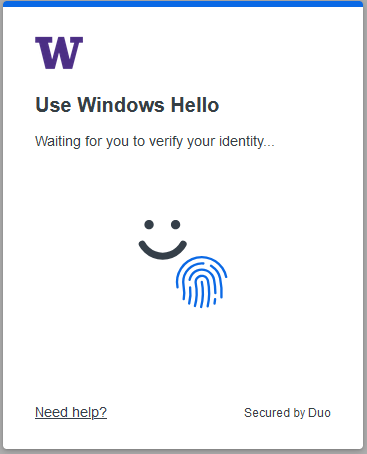 You can follow the prompts from your browser to finish setting up the platform authenticator
 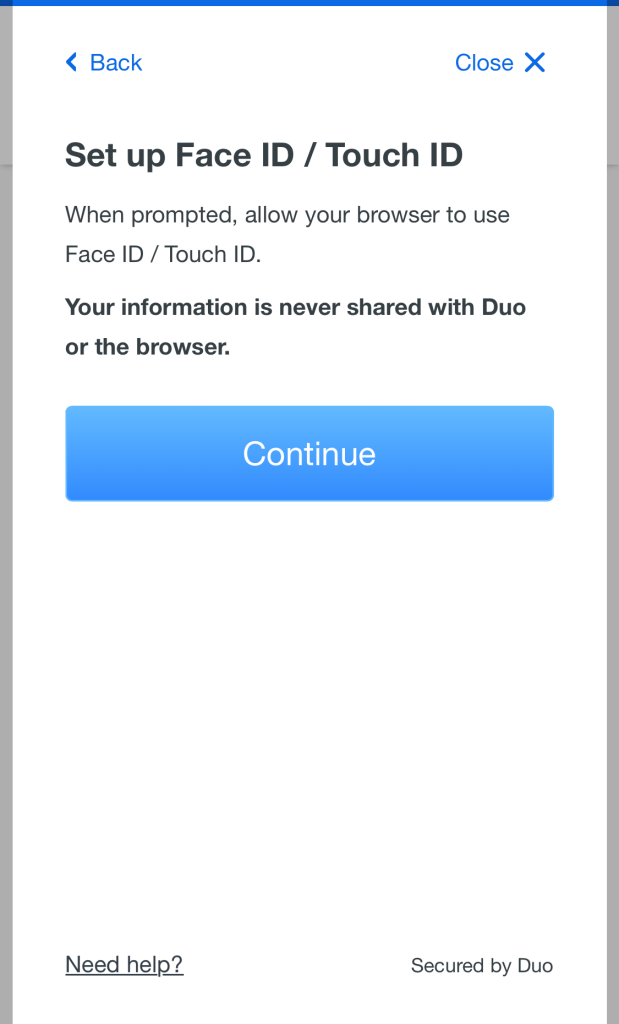 On an apple device, you can set up FaceID/TouchID
 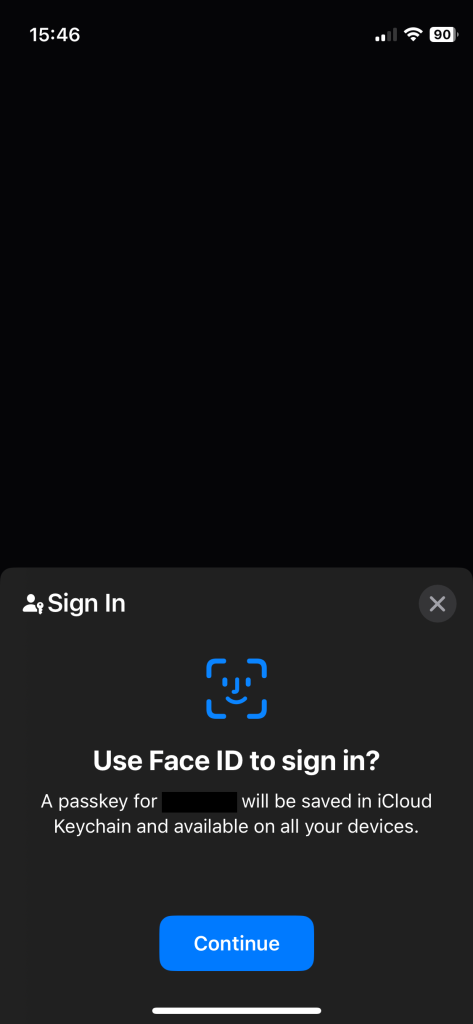 You will need to save the keychain in the iCloud keychain. If you don't have your secrets managed by the iCloud keychain, you may need to change your settings.
 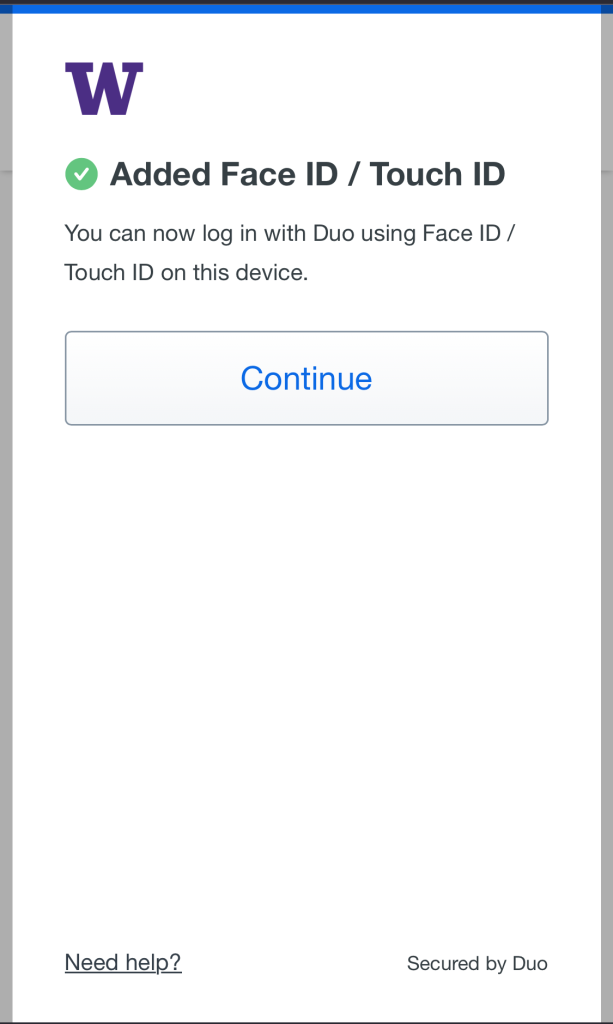 Once you are doing setting up, you are good to go
Selecting "Add a device" allows you to add a platform authenticator On windows devices, you can utilize the "Windows Hello" platform authenticator You can follow the prompts from your browser to finish setting up the platform authenticator 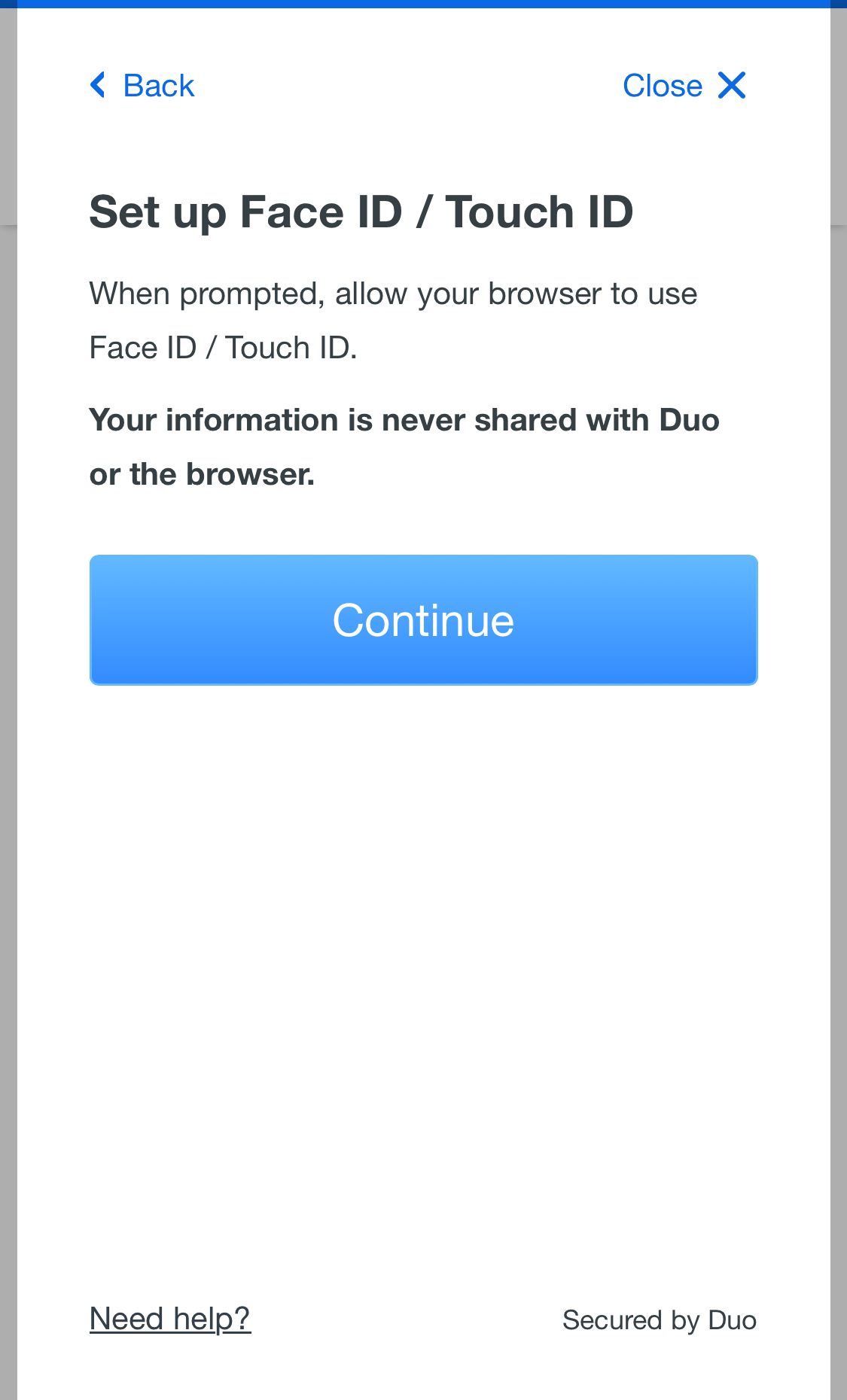 On an apple device, you can set up FaceID/TouchID
 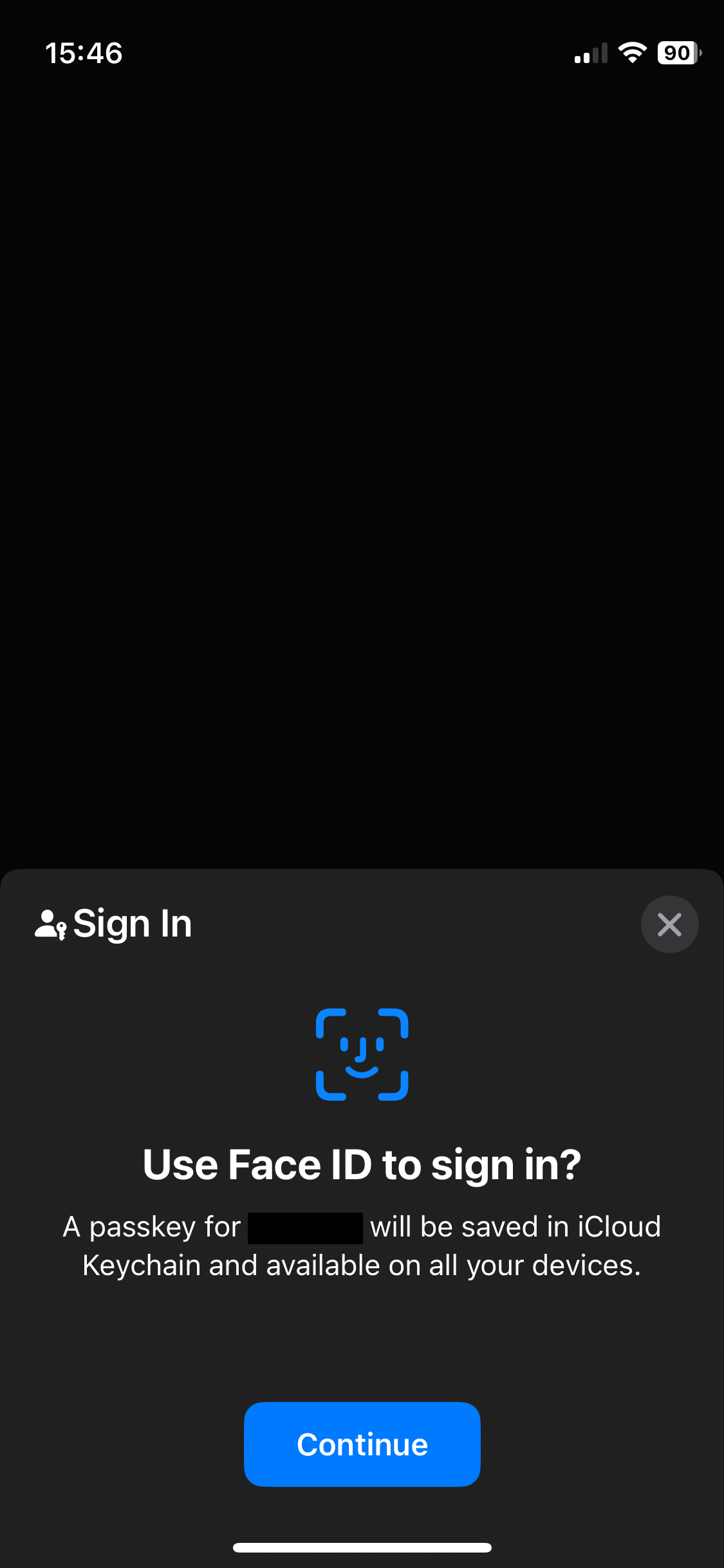 You will need to save the keychain in the iCloud keychain. If you don't have your secrets managed by the iCloud keychain, you may need to change your settings.
 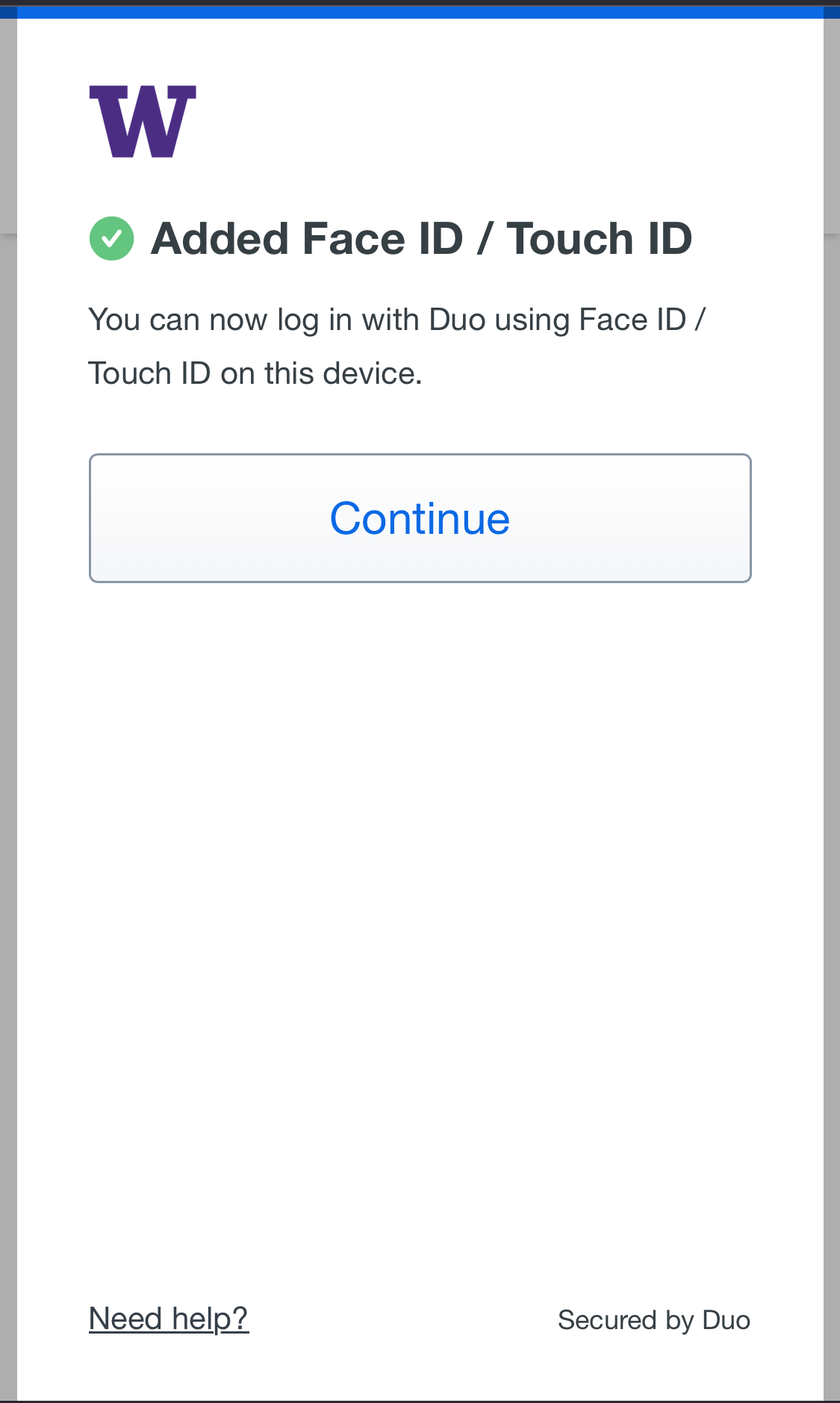 Once you are doing setting up, you are good to go Selecting "Add a device" allows you to add a phone
 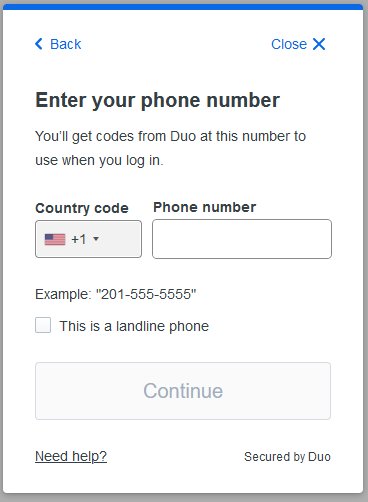 Enter your phone number, and if it is a landline select the checkbox.
 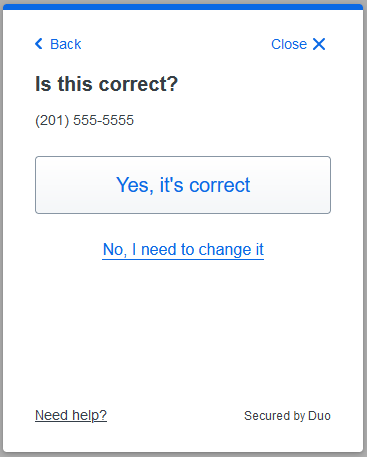 Confirm it is your phone number
 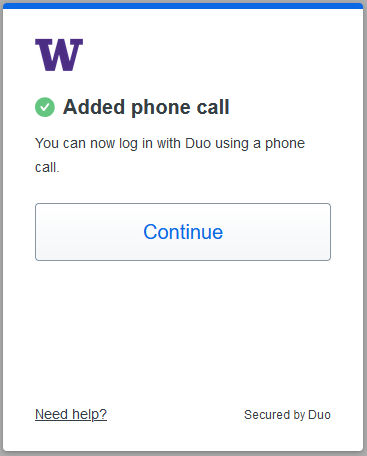 Finalize adding the phone
 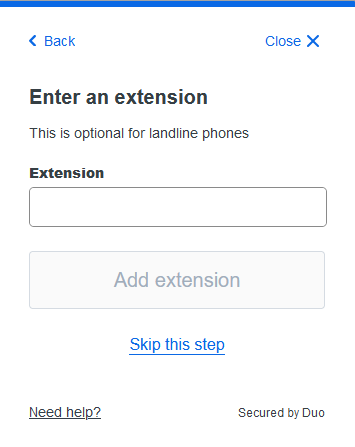 If you selected a landline on the first step and it has an extension, it can be added here. Otherwise, skip this step. You will continue the steps above.
New authentication methods enabled
Platform Authenticators
Platform authenticators are a new way to do authentication that utilize the biometric passkeys on your device. Platform authenticators are only available as a method of authentication for the device they are set up on (so if you set up your phone, you can't select the phone's platform authenticator when on your computer). The prompts to set up your platform authenticator will be specific to your device, and not all devices support Platform Authentication. Duo's supported platforms are listed on their platform authenticator guide. How to set up platform authenticators can be found in the section above under "NEW: Setting up a platform authenticator" or on set up a platform authenticator.
Verified Push
Verified push is a more secure form of push based authentication, that requires you to type in the numbers shown on the screen into Duo Mobile. This form of "push notification" is considered more secure to push fatigue and other forms of attack. Verified push is not currently in use for integrations at the UW, but may start to appear in more secure applications. Application owners can read more about verified push on the altered 2FA experience page.
Previous Changes
Duo has updated the way MFA looks during your sign-in experience. Documented below is the new and previous Duo behavior for reference.
Understanding new and previous Duo behavior
With the new Duo experience, how you normally start your sign-in process won't change. In this example, you would sign in to the UW IdP using a UW NetID and password when signing into a site such as my.uw.edu. The sign in step looks the same. 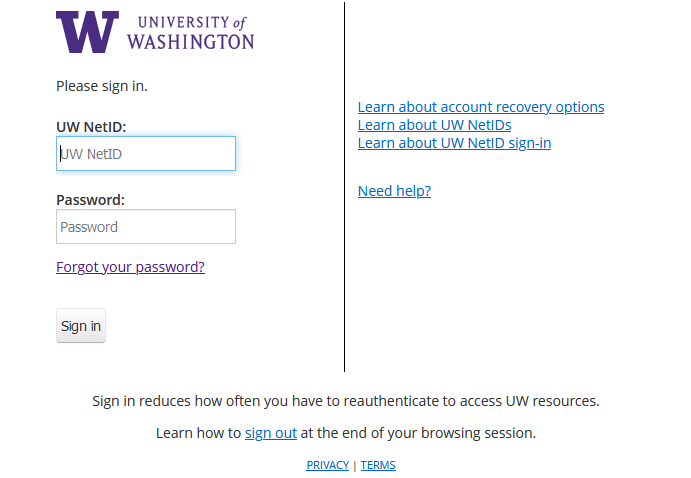 UW IdP sign in page
UW IdP sign in pageAfter providing your first factor (UW NetID and password), you are prompted to provide your second factor, which is your verification via Duo. In the new Duo authentication, you will be automatically prompted with your last-used method. How you approve your Duo authentication method is not changing. However, with your first sign-in experience Duo may choose a method you do not typically use. 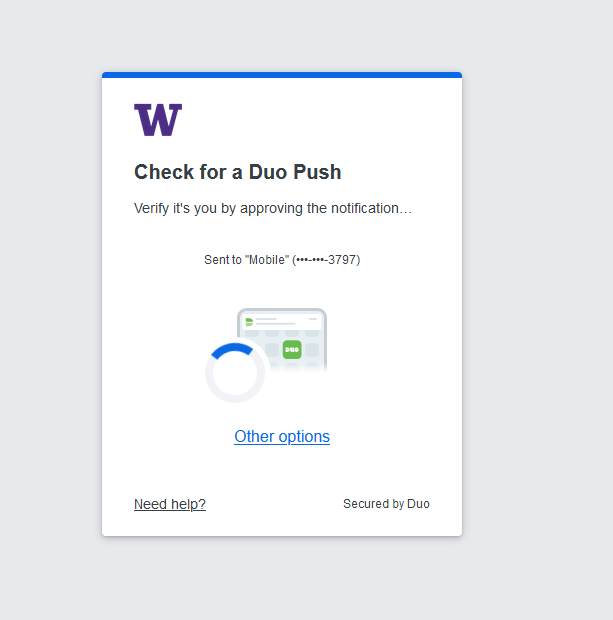 New Duo prompt experience Many people at the UW prefer the Duo "Push" method for Duo authentication by default, while others choose passcodes or other methods. Note that if the "wrong" method is presented by default, you can choose "Other options" to select from a list of Duo methods (the available options will depend on what you have added at https://identity.uw.edu/2fa/ ). Any method you select when you're first presented with the new Duo prompt will provide you the typical authentication experience.
 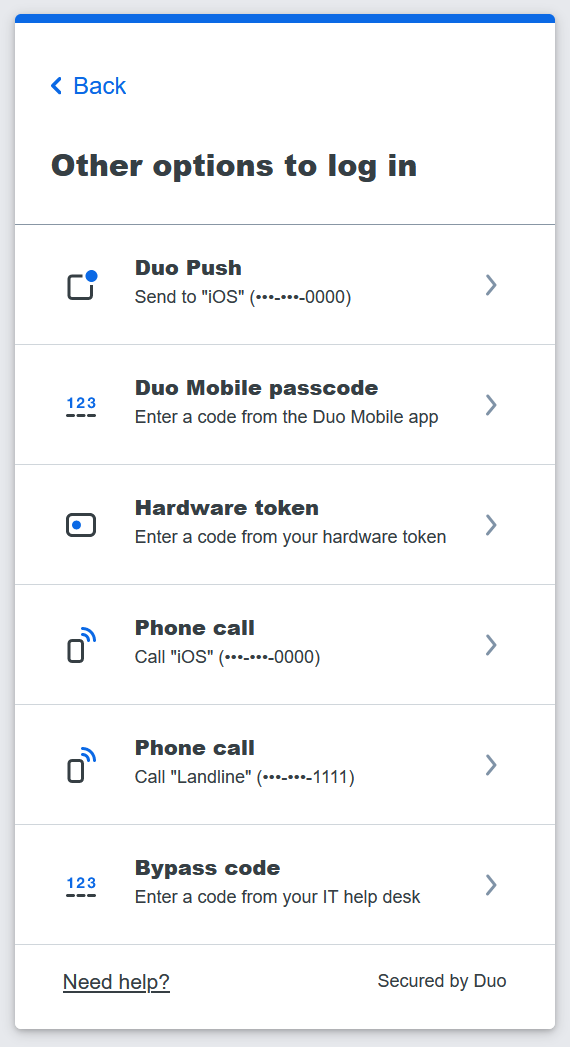 New Duo method selection In the previous Duo prompt, you were presented with a different approach to choosing your authentication option. In this previous prompt, to see other available authentication options, you first had to click "cancel".
 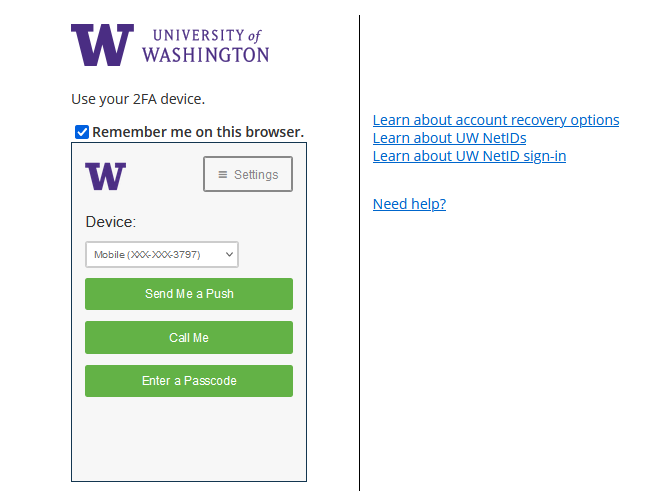 Old Duo prompt experience
New Duo prompt experience Many people at the UW prefer the Duo "Push" method for Duo authentication by default, while others choose passcodes or other methods. Note that if the "wrong" method is presented by default, you can choose "Other options" to select from a list of Duo methods (the available options will depend on what you have added at https://identity.uw.edu/2fa/ ). Any method you select when you're first presented with the new Duo prompt will provide you the typical authentication experience. New Duo method selection In the previous Duo prompt, you were presented with a different approach to choosing your authentication option. In this previous prompt, to see other available authentication options, you first had to click "cancel". Old Duo prompt experienceWith the new Duo prompt, there is also a change in the URL that Duo presents in your browser. You will see duosecurity.com in the address.  New Duo URL Note that "duosecurity" in the URL will be correct; you will no longer see "idp.u.washington.edu" in the web address when being asked for Duo.
  Old Duo URL Other legitimate UW applications and websites may display a different URL during sign-in, where you see something besides the two web addresses shown above. If the web address looks unfamiliar or suspicious, you should stop signing in, and not do any further authentication. You can instead take a screenshot and contact help@uw.edu, and provide the screenshot to have it checked as legitimate or not.
New Duo URL Note that "duosecurity" in the URL will be correct; you will no longer see "idp.u.washington.edu" in the web address when being asked for Duo. Old Duo URL Other legitimate UW applications and websites may display a different URL during sign-in, where you see something besides the two web addresses shown above. If the web address looks unfamiliar or suspicious, you should stop signing in, and not do any further authentication. You can instead take a screenshot and contact help@uw.edu, and provide the screenshot to have it checked as legitimate or not.With the new Duo prompt experience, there is also a change to how to select "remember me" for future sign-ins. The actual handy behavior of "remember me" is not changing; you can read more about this at https://it.uw.edu/tools-services-support/access-authentication/2fa/remember-me/. In the new Duo experience, you will be asked "Is this your device?" If you select "Yes, this is my device", Duo will remember your device for the next 30 days just as "remember me" would do. If you select "No, other people use this device," then Duo will prompt you for MFA the next time you log in with that browser. 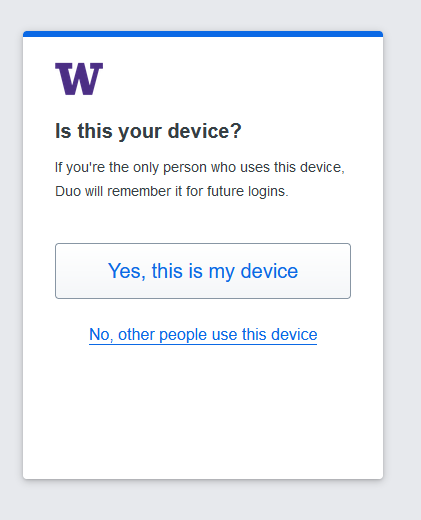 New Duo "Remember Me" The language in the new process similarly mirrors the behavior of the previous "Remember me on this browser" check box. Unchecked, you would be prompted for Duo on your next sign-in with that browser, while checking it gives you a 30-day period where this browser would no longer require MFA upon sign-in. While the look and language have changed, the familiar behavior of "Remember me" stays the same.
 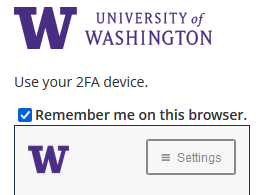 Old Duo "Remember Me"
New Duo "Remember Me" The language in the new process similarly mirrors the behavior of the previous "Remember me on this browser" check box. Unchecked, you would be prompted for Duo on your next sign-in with that browser, while checking it gives you a 30-day period where this browser would no longer require MFA upon sign-in. While the look and language have changed, the familiar behavior of "Remember me" stays the same. Old Duo "Remember Me"Contrasting New and Old Duo Authentication Methods
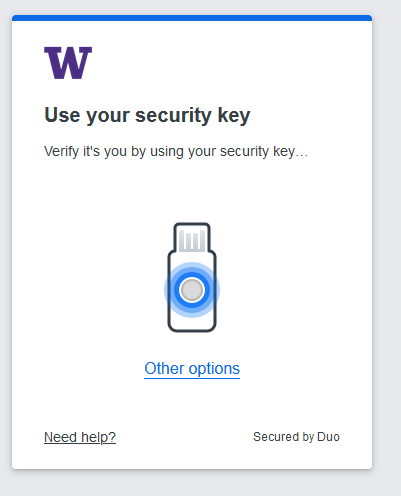
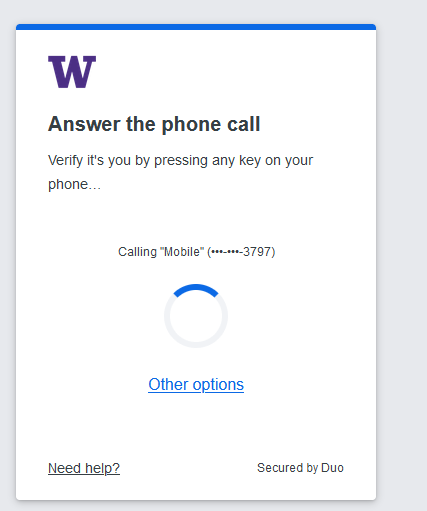
Previous changes to MFA also updated the look while authenticating. Each method's changes are captured below.
Contrasting New and Old Duo Authentication Methods
New push  Old push
 New
New 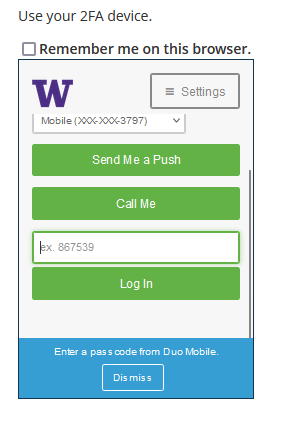 Old
Old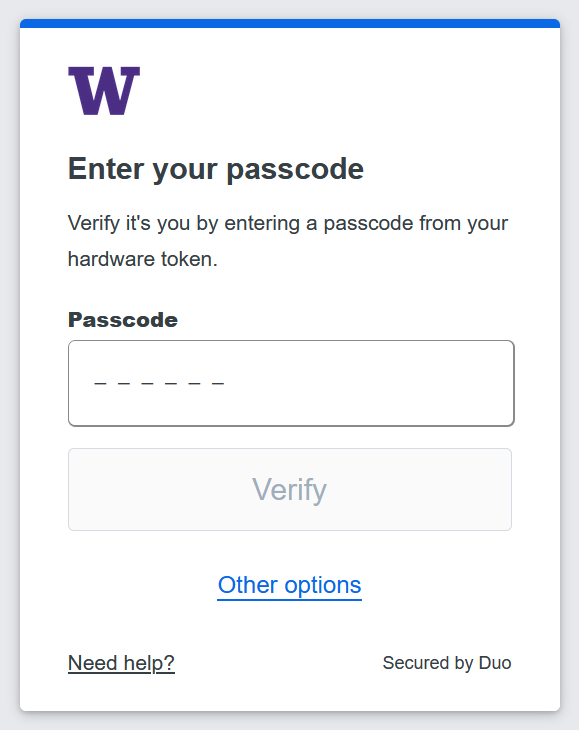
 New
New 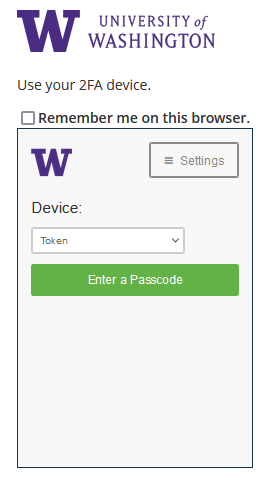 Old
Old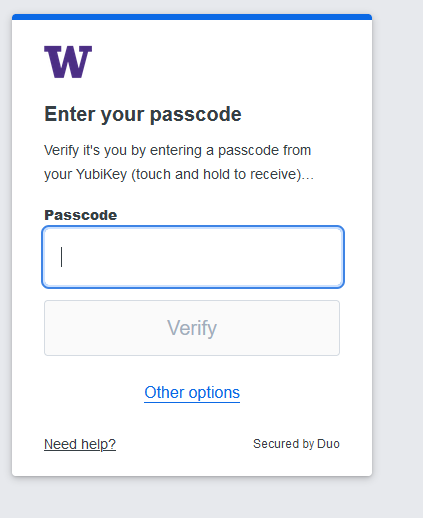 New
New 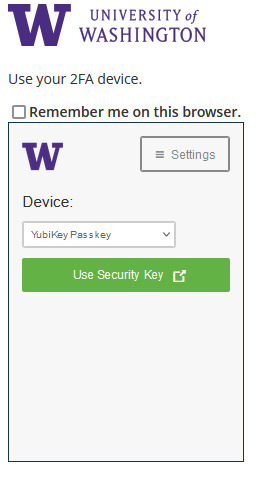
Old
 New
New 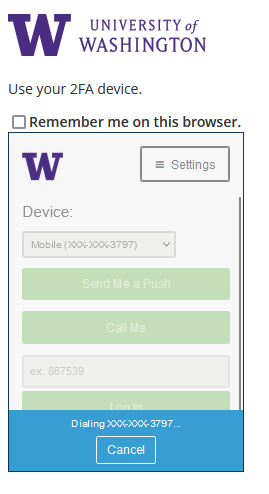 Old
Old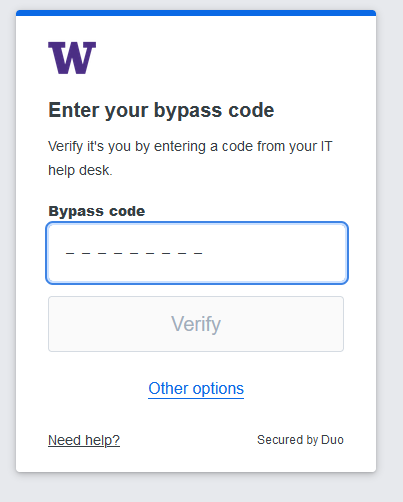 New
New 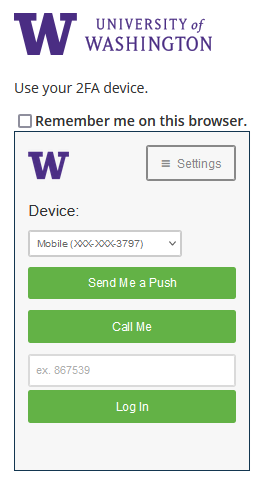 Old
Old