Connecting to UW SharePoint/OneDrive in Tableau Server
Page Contents
How Do I Connect to Resources in UW SharePoint/OneDrive?
- Select the OneDrive and SharePoint Online connector.
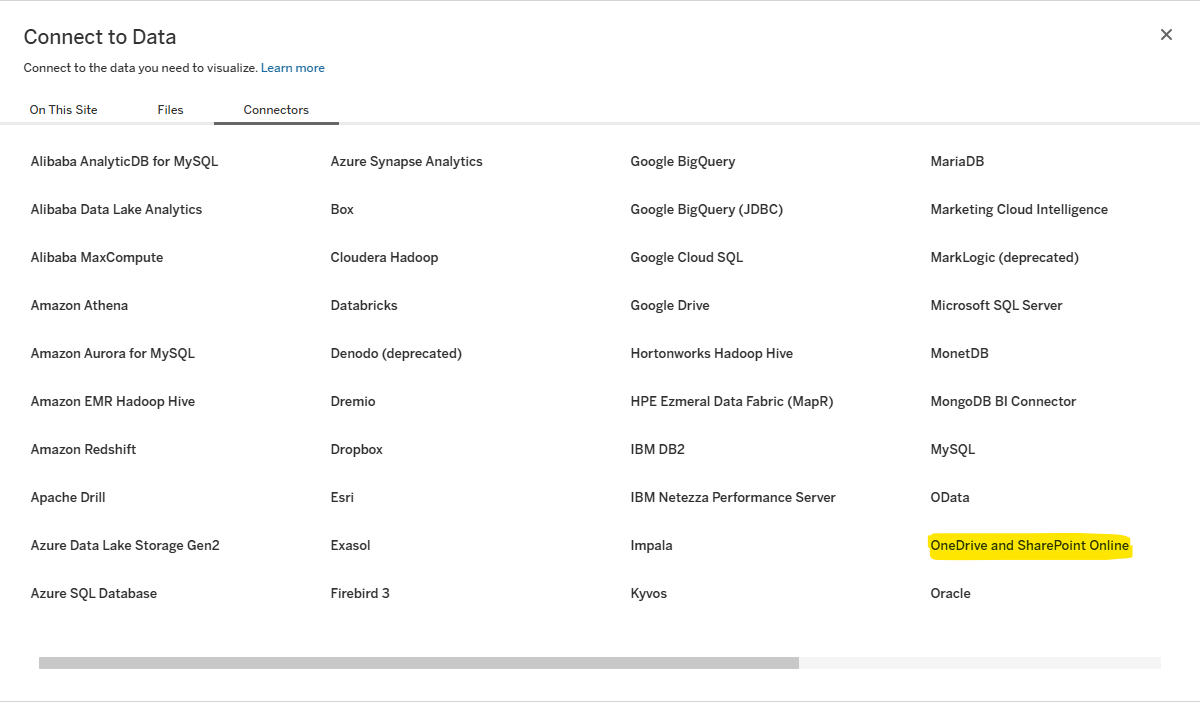
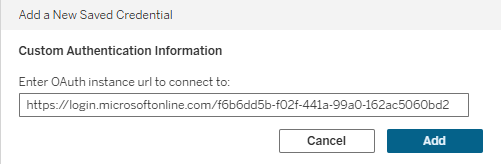
- Connect to the UW SharePoint Online tenant:
- Paste https://login.microsoftonline.com/f6b6dd5b-f02f-441a-99a0-162ac5060bd2 into the available field.
- Click Add.
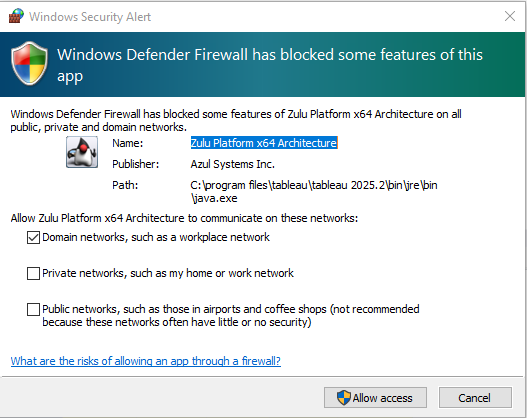
- If prompted, click Allow Access to accept the Windows Security Alert:
- Click Accept to grant permissions to OneDrive and SharePoint:
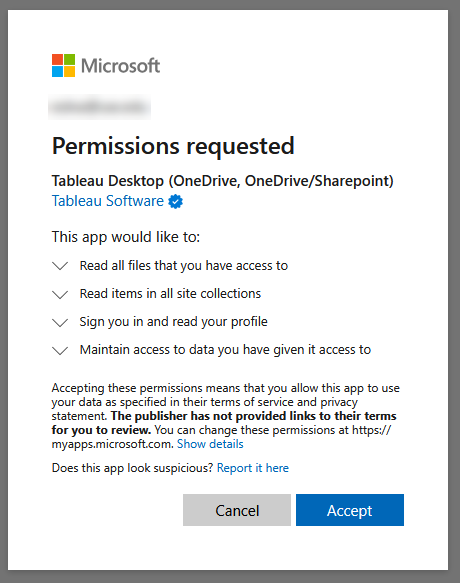
Note: The authorization process has a fairly short time-out. If you receive a time-out error, return to step 1 to restart the process of adding credentials.
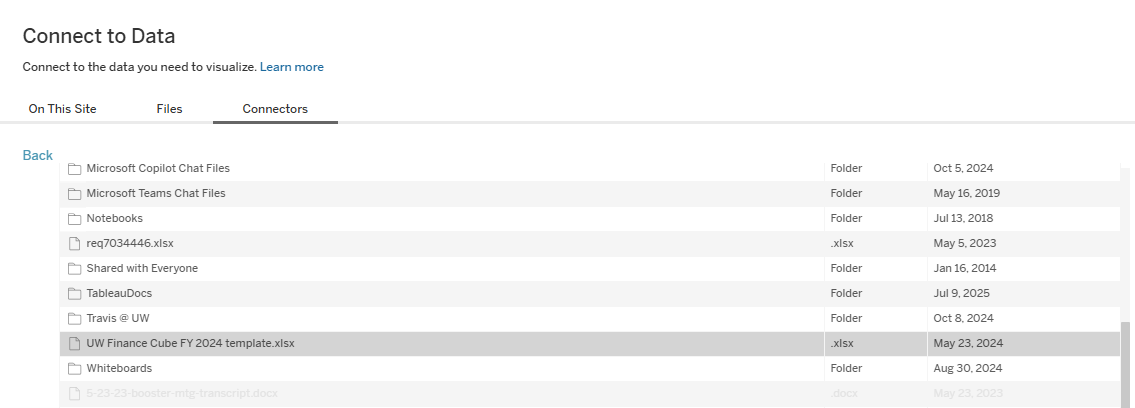
- Select the file(s) you want to use as a data source:
How Do I Save Credentials for Extract Refresh Use?
- Connect to the Tableau Server: https://bitools.uw.edu/t/Transitional.
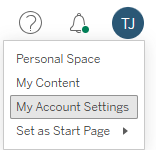
- Click your initials in the top right corner and select My Account Settings.
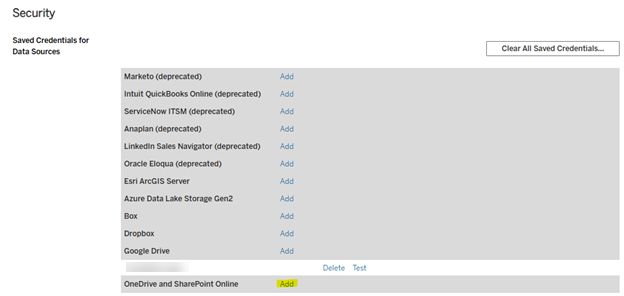
- Under Security, click Add next to OneDrive and SharePoint Online:
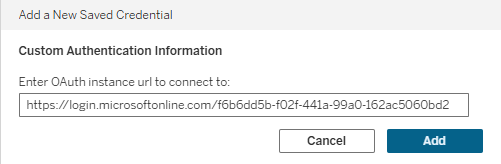
- Connect to the UW SharePoint Online tenant:
- Paste https://login.microsoftonline.com/f6b6dd5b-f02f-441a-99a0-162ac5060bd2 into the available field.
- Click Add.
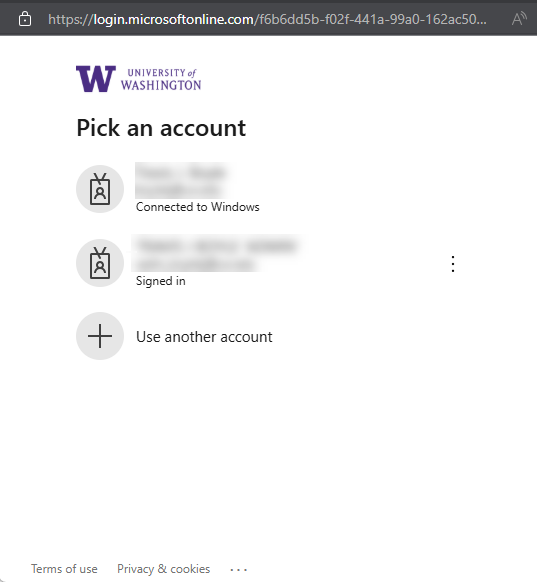
- Authenticate with your UW email address:
- Optional Embed these credentials in a data source:
Note: If credentials are not embedded, users will enter their credentials when using the dashboard and cannot schedule an extract refresh.
- Navigate to the Project and Data Source and select Edit Connection.

- Click Embedded credentials in the connection, select your saved credentials from the drop-down menu, and then click Save.
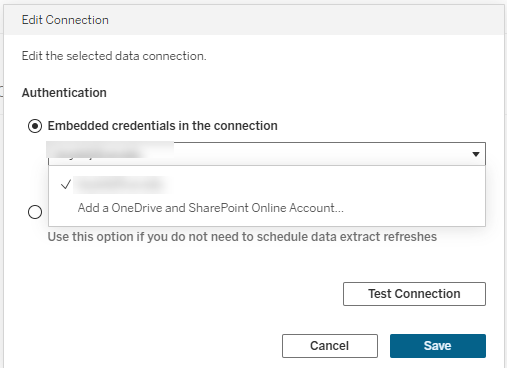
Note: This data source will now connect to SharePoint using the specified credentials. Care should be taken to ensure that access to the data source is limited appropriately, as any user with access to the data source will be accessing with the permissions of the stored credentials.